Posts

HOW TO REMOVE RECYCLER VIRUS FROM A PEN DRIVE(VIEWING FILES IF HIDDEN IN SOME CASES)
Image
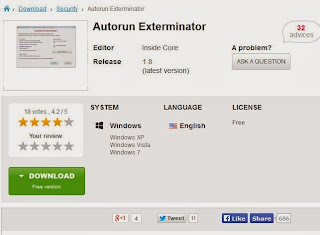
Step 1: Click on the below link and download the file "AutorunExterminator" http://en.kioskea.net/download/download-11613-autorun-exterminator Extract it --> Double-click on "AutorunExterminator" --> Plug your External hard drive now. This will remove the autorun.inf files from your External hard drive and also from the drives. Step 2: Click on "Start" -->Run --> type cmd and click on OK. Here I assume your External hard drive as G: Enter this command. attrib -h -r -s /s /d g:\*.* You can copy the above command --> Right-click in the Command Prompt and paste it. Note : Replace the letter g with your External hard drive letter. Now check for your files in External Drive. Step 3: After that, download the Malwarebytes' Anti-Malware from the below link http://en.kioskea.net/download/download-105-malwarebytes-anti-malware Update it --> Perform "Full Scan" Note : De...

HOW TO PASSWORD PROTECT FILES AND FOLDERS

Image
This article provides the user with knowledge on how to password protect computers and folders. It explains how this can be done on various versions of Windows. The article explains how important it is to protect files with passwords and also the ways in which you can protect your password. You can create a file consisting of your passwords and then make a back-up of this file. The process of password protection is described on the following versions of Windows: Windows 3.x, Windows 95, Windows 98, and Windows XP along with its Home Edition. You may also protect your password with a compress tool such as WinRAR . In order to restrict access to important or confidential files and folders, you can password protect them. However, you should always save a file containing the passwords in use, for example in an Excel sheet, so that you do not forget them. Also, always make a back-up of those files and folders in a single password protected password external drive, ...

HOW TO TAKE SNAPSHOT ON ADOBE READER

Image
To take a snapshot of a PDF file opened with Adobe Reader, follow the below procedure: Open your PDF file. Click on Edit > Take a Snapshot. You cursor will take the form of a small cross-hair. Select the area you want to copy (hold the right mouse button down and drag). Upon releasing the right mouse button, you shall get the following message: Paste the copied graphics in the Paint or any other image editor and save your file. Note that: To undo a selection, simply press CRTL + SHIFT + A

HOW TO FIX BLURRY CAMERA PICTURES

Image
To fix a blurry picture taken with a camera, you need special software designed to manipulate photos. Making the picture crisp in regards to focus is pretty much impossible, but it is possible to lessen the blur. One solution is a software program called Unshake, available for free on the Internet. The program is written in Java, which allows it to work for both the Mac and PC and allows for varying degrees of "DeBlur", which you can adjust accordingly to achieve the best results. The end results will vary depending on how blurry the picture is to begin with. In the below picture, we have a blurry shot of an Intel 486 processor and the same picture that has had the blur removed using this tool. Download Unshake Due to how the Unshake program is programmed and designed, it can be slow to process larger images. A 10 megapixel picture will likely take several minutes to process. It is recommended that you experiment with the settings of the program on a smal...

11 AWESOME APPLICATIONS

Image
The average PC user has a dozen or so applications which they completely swear by – and rightfully so. What gets the job done is what matters the most. There is, however, a treasure-trove of pint-sized utilities and fully blown applications just waiting to be discovered. We’ve scoured the Web to provide a list of 11 useful programs which you’ve probably never heard of. All of the programs in this article are either absolutely free of charge or have a free alternative, so don’t hesitate to give them a shot and see what you’ve been missing out on. We hope that by the end of this list, you’ll have discovered at least one application that fills a void you didn't even know existed. Before delving deep into the realm of app discovery, you may also want to check our previous coverage on the top applications to install after a fresh OS installation. MaxTo Set boundaries for your windows Now that it’s becoming a standard to own 20”+ widescreen monitors and dual dis...

WHERE TO FIND FREE ICONS TO DOWNLOAD

Image
Free icons can be found on numerous sites on the web. Below is a listing of some of the sites that allow you to download free icons for Windows, MacOS, and commercially. Free Icons - Hundreds of thousands of icons available in ICO, PNG, and ICNS format. Free Icons Web - Has thousands of royalty free icons for download. Icon Archive - Another great site with thousands of icons available in multiple formats. Free Icons Download - Contains a lot of royalty-free icons for download. IconsPedia - Free icons in numerous categories. Best Free Icons - Contains over 20,000 free icons SoftIcons - A number of free icons avialable for download. 50 Free High-Quality Icon Sets - Icon sets recommended by Smashing Magazine. Proicons - Free icons made with Windows Vista, Windows 7, and Windows 8 in mind.

HOW TO CREATE A CURSOR(MOUSE POINTER)

Image
1 First you need to make the cursor file. Go to http://www.cursor.cc and start drawing. 2. Don't forget to place the cursor's hotspot on the right place. 3. Download the cursor. cur file when you are finished. 4.Open control panel and go to mouse settings 5.Now click on the 'pointers' tab in the new dialog box 6.click on 'browse' under the 'pointers' tab 7.now find the 'cursor.cur' file and open it 8.now click on 'apply' that's all